
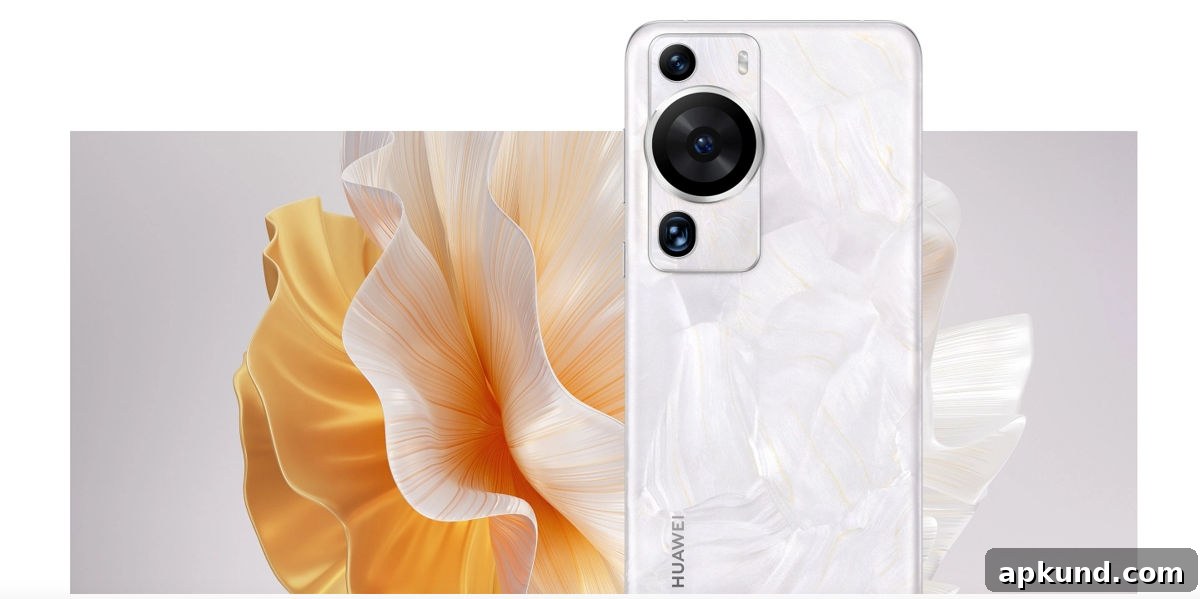
The Huawei P60 Pro is a capable and well-built phone, but it lacks one major convenience out of the box: Google Play services. Due to ongoing trade restrictions, Huawei devices sold outside certain markets cannot ship with Google’s apps and services preinstalled. That can be a dealbreaker for many users who rely on Gmail, Maps, YouTube, and other Google apps for daily tasks.
Fortunately, there is a reliable workaround that gets the Play Store ecosystem functioning on most global P60 Pro units running EMUI 14.2 or newer. The approach uses microG, an open-source reimplementation of Google Play Services, together with Aurora Store to download and update apps. This process typically takes around 20 minutes for a straightforward installation and configuration. Note: devices purchased in China often ship with HarmonyOS rather than EMUI; the steps below are intended for global EMUI devices and may not apply to HarmonyOS units.
What You’ll Need
Before you begin, make sure your P60 Pro is on EMUI 14.2 or a later EMUI release. You can check this under Settings > About phone. Also enable installations from “Unknown sources” or allow app installations from sources outside the official app store in your device settings. Finally, plan to grant a few permissions during setup so microG and Aurora Store can function correctly.
Get microG Services
- Open Huawei AppGallery on your P60 Pro.
- Search for “microG”.
- Locate “microG Services” and tap Install.
- The package typically installs a companion app automatically; wait until both are installed completely.
Set Up Permissions
- Go to Settings > Apps > Apps and find “microG Services”.
- Open its permissions panel and enable the requested permissions such as Location, Storage, and Phone access.
- Return to the apps list and find “microG Companion” (or similarly named helper app).
- Set its permissions, ensuring location permission is set to “Allow only while using the app” where prompted.
Connect Your Google Account
- Open microG Services from your app drawer.
- Tap the settings or gear icon in the microG interface.
- Enable “Google device registration” or the equivalent toggle.
- Choose “Add Google account” and then “Sign in” to enter your credentials.
- Follow the on-screen prompts to complete account setup.
A short security note: this method signs you into Google through a third-party client rather than Google’s official framework. If you are uncomfortable with that, consider whether this setup is right for you. On the other hand, microG is open-source and has been a trusted tool in Android modding communities for many years; its code is available for inspection by anyone who wants to verify behavior.
Get Aurora Store Running
- Exit microG and return to Huawei AppGallery.
- Search for “Aurora Store” and install it.
- Launch Aurora Store after installation completes.
- Choose anonymous sign-in or log in with your Google account via Aurora’s interface if you prefer.
- Use Aurora Store to search for and install the Google apps you need, such as Gmail, Maps, YouTube, and Chrome.
Make Sure Everything Works
- Open microG Services and navigate to the “Self-Check” or diagnostic area.
- Confirm that the key items display green checkmarks; a red indicator usually means a missing permission or setting.
- Install a test app like Gmail or Google Maps through Aurora Store and launch it to verify it runs correctly.
If Something’s Not Working
If apps behave oddly or fail to open, restart your P60 Pro and double-check microG’s permissions and settings. If Aurora Store cannot install certain packages, go to Settings > Apps > Aurora Store > Permissions and ensure the app has the access it requires. Reinstalling the problematic app or updating microG and Aurora Store to the latest versions can often resolve glitches.
While neither Google nor Huawei officially supports this configuration, many P60 Pro owners have successfully used microG and Aurora Store to regain access to the Google app ecosystem on EMUI 14 devices. This setup provides a practical compromise for users who need Google services without switching devices.
If you have an older Huawei model on much earlier EMUI releases, there are other legacy tools and guides that might help, but they often require older firmware versions and are not applicable to modern EMUI releases. Proceed carefully, follow the steps above, and back up any important data before making changes to system settings.