
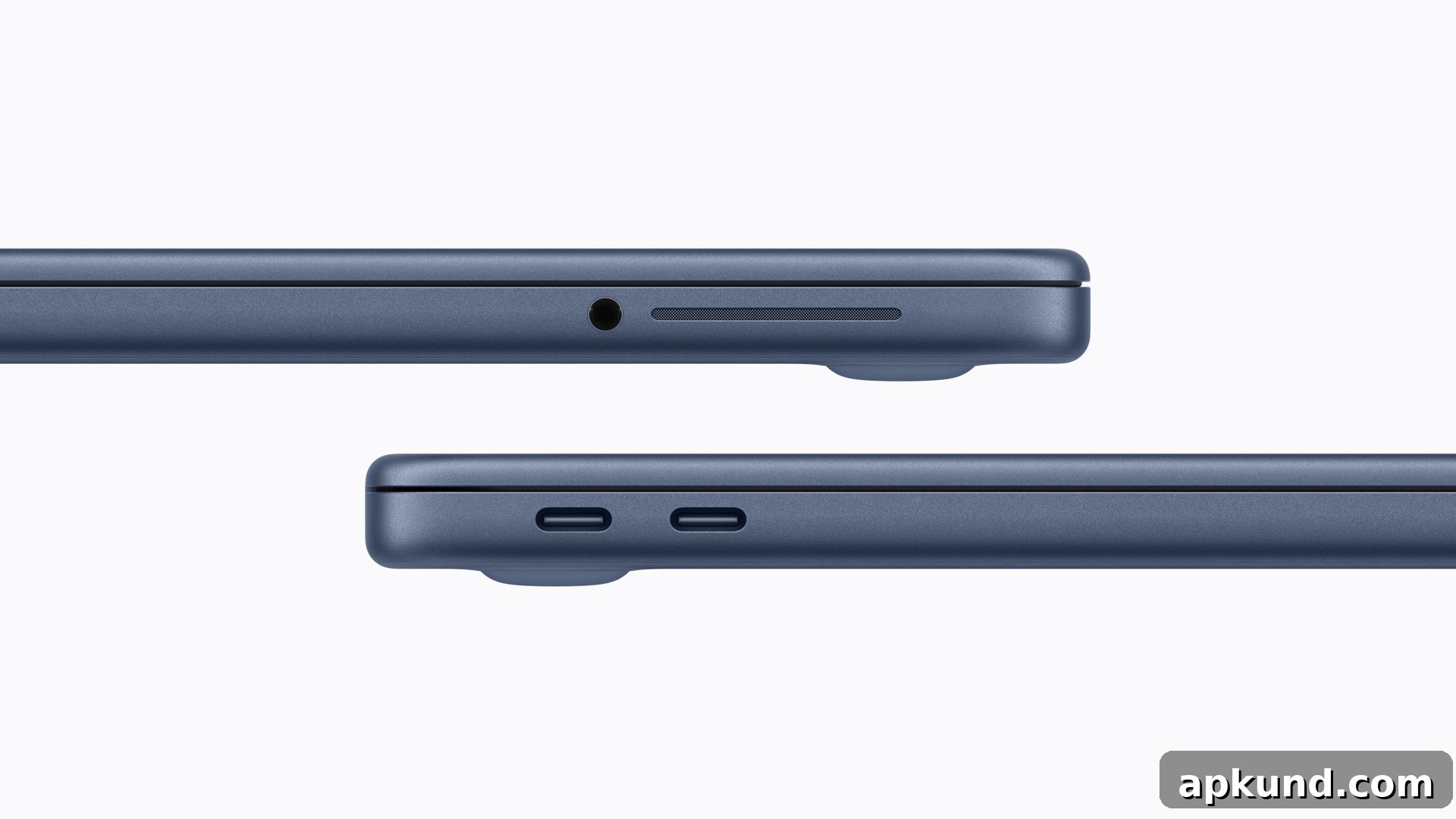
The MacBook Neo arrives with just two USB-C ports and no MagSafe charging connector. At first glance both USB-C ports look identical and are advertised to handle charging and accessories, but they are not identical in capability. One port supports faster data transfer and video output, while the other is limited to much slower speeds and lacks display output entirely.
According to Apple’s specifications, one USB-C port offers USB 3 data rates up to 10 Gb/s and supports DisplayPort for connecting an external monitor. The other port is limited to USB 2 speeds of 480 Mb/s and provides no display output. Apple notes the faster port is the rear-most one, but because the ports are visually identical and carry no labels, it’s easy for users to plug accessories or monitors into the slower port without realizing it.
If you plug a monitor into the slower port, macOS does not silently fail. The operating system detects the issue and displays an on-screen notification advising you to switch the cable to the other port. That alert helps prevent confusion and avoids unnecessary trips to a store for help. The notification is a practical safeguard given the identical physical appearance of both connectors.
Why This Port Setup Exists
The difference between the two ports comes down to the chip architecture Apple used in the MacBook Neo. The Neo runs on Apple’s A18 Pro chip, the same architecture that powers recent iPhone models. Unlike Apple’s MacBook Air and MacBook Pro, which use M-series silicon that integrates Thunderbolt controllers and broader I/O capabilities, the A18 Pro lacks an integrated Thunderbolt controller. That omission restricts how many high-speed USB and video paths the system can provide, which is why one port is effectively capped at USB 2 performance.
For buyers, that limitation has practical implications. The faster port can drive an external display at up to 4K resolution at 60 Hz, which suits most mainstream monitors sold at this price point. The slower port cannot output video, so any attempt to use it as a monitor connection will result in no display until the cable is moved to the appropriate port. Because the OS intervenes with a helpful prompt, the user experience is less frustrating than it might otherwise be, but the hardware trade-off remains worth noting for prospective buyers.
This arrangement is one of the compromises Apple made to deliver a lower-cost notebook experience. Using the A18 Pro helps keep price and power consumption down, but it also means some advanced I/O features common on pricier models are not present. For users who routinely connect multiple high-bandwidth accessories—external storage, docks, or multiple displays—the Neo’s port configuration may be a limiting factor. For more casual users who mainly need a single external monitor and basic accessories, the device’s capabilities are likely sufficient.
If you plan to pair the MacBook Neo with external peripherals, the simplest approach is to treat the rear-most USB-C port as the primary connector for displays and high-speed devices. Keep power and lower-bandwidth accessories on the other port when possible. If you don’t know which port is which, macOS will prompt you when it detects a display connected to the wrong port, which reduces confusion and speeds up troubleshooting.
The MacBook Neo was announced with a focus on affordability and basic productivity. It represents a different set of trade-offs compared with Apple’s higher-end laptops—trades that favor cost and battery efficiency over maximum I/O flexibility. The Neo’s relatively modest external display support and asymmetric port abilities are part of that design philosophy, and knowing how the ports differ will help buyers set realistic expectations and avoid simple connectivity hiccups.