
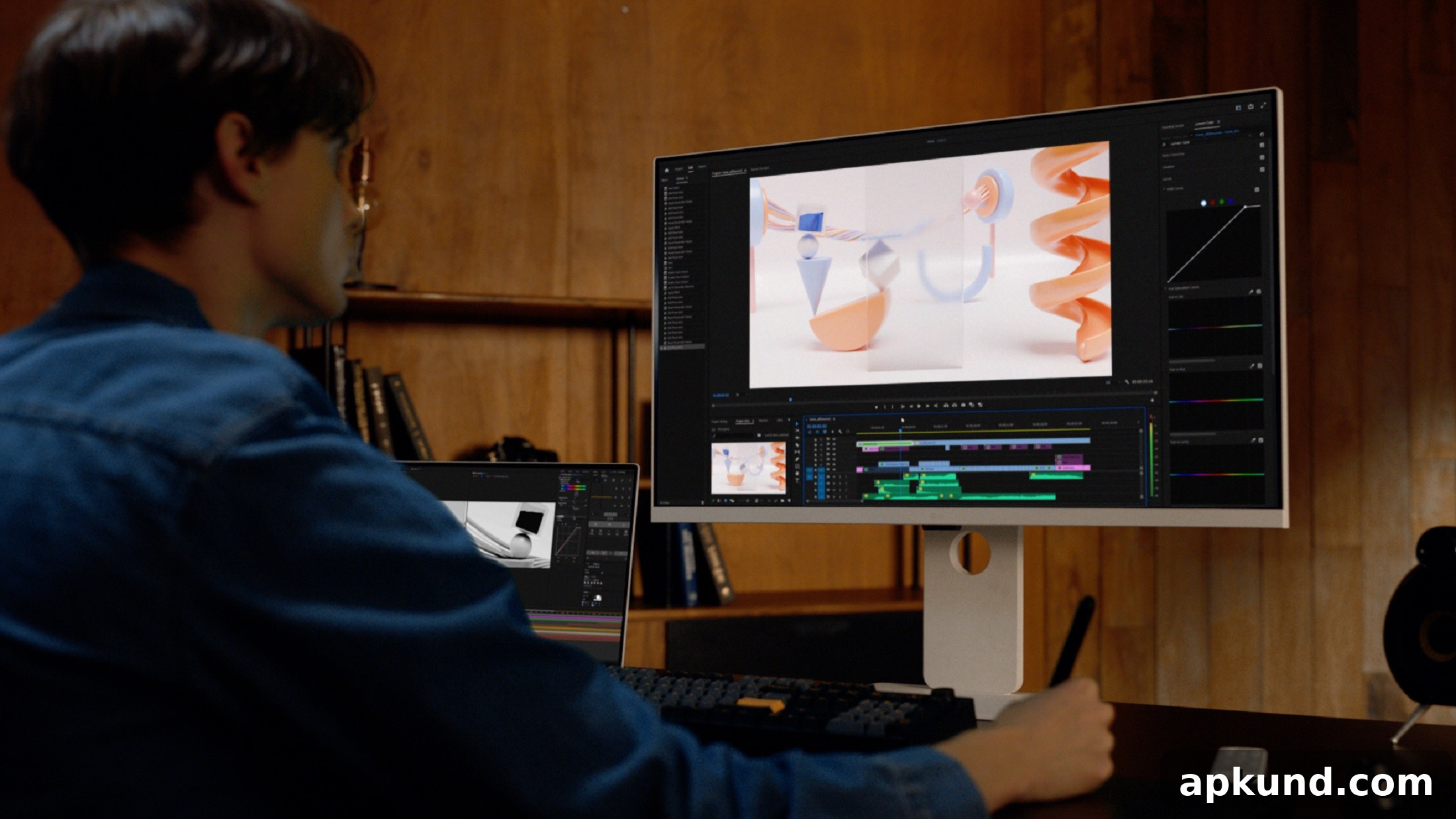
Setting up a new monitor should be straightforward: plug it in, configure your settings, and start using it. For some LG owners, however, the experience has included an unexpected addition—software that appears on their Windows PC without any explicit consent. Recent testing has revealed that certain LG monitors trigger automatic downloads and installations of companion software the moment they are connected to a Windows system.
Independent testing by a reputable hardware review outlet found that when specific LG displays are connected, Windows Update silently downloads LG-related extensions and software packages. Within roughly a minute, an LG Monitor App Installer appears on the system. According to the tests, no consent dialog or explicit approval step is presented to the user before the installer arrives. In repeated boot tests of the same machine, a trial advertisement for a third-party security product appeared on nearly every boot, offering a temporary trial that would convert to a paid subscription unless the user opted out.
This behavior is not limited to brand-new hardware. Testers observed the same automatic installer being delivered to an LG UltraFine monitor purchased several years earlier, suggesting the mechanism is broad and affects multiple models. The Microsoft Store listing for the LG app indicates that it requests broad access to the internet and to system resources on the PC, which raises privacy and security questions for users who did not explicitly choose to install that software. Complaints about this automatic installation behavior date back at least to 2024, and recent reports indicate a wider spread across more LG monitor models.
LG Isn’t the Only Company Doing This
LG is not alone. Other manufacturers have adopted similar approaches to push companion software to Windows systems. For example, some Dell Alienware monitors prompt the installation of the Alienware Command Center as soon as compatible hardware is detected, delivered through Windows Update. This pattern appears to be a feature of how Windows handles newly connected devices: Windows can use device metadata to discover and download manufacturer-recommended drivers and applications automatically. Device makers are increasingly relying on that capability to ensure their utility software is present on customer systems.
While automatic driver delivery can be helpful for basic functionality—ensuring displays work out of the box without manual driver hunting—it becomes problematic when additional apps or promotional software install without clear user consent. Users understandably expect control over what lands on their personal computers, especially when an install brings in bundled trialware or asks for extensive permissions.
Microsoft’s Windows environment does include controls that can prevent this kind of automatic installation, but they are not always available or obvious to every user. Enterprise and Pro editions of Windows offer Group Policy settings that can restrict device installations based on metadata, effectively blocking apps from installing automatically when new hardware is connected. That option gives administrators a way to stop unsigned or undesired companion apps from being pushed to systems. Unfortunately, those Group Policy controls are not available on Windows Home editions, leaving many home users with fewer options to block automatic companion app installations.
For users concerned about unexpected software appearing after connecting new hardware, there are several practical steps to reduce risk: check Windows Update history and optional updates after adding a new device, monitor newly installed applications in Settings > Apps, and review privacy and app permissions for recently added software. When possible, use Windows editions that provide group policy or registry settings to block device-based automatic installs, or consult the device manufacturer’s support resources and documentation to learn which companion apps are truly necessary and which can safely be ignored or uninstalled.
Until manufacturers and platform providers adopt clearer, more transparent installation flows that require explicit user consent for nonessential software, it’s wise to be vigilant. The next time you plug in a new display, take a moment to verify what was installed, review any new entries in your installed programs list, and remove or block software you did not explicitly choose. That extra step helps maintain control over your system and prevents unexpected trialware or apps from consuming system resources or requesting unnecessary permissions.