
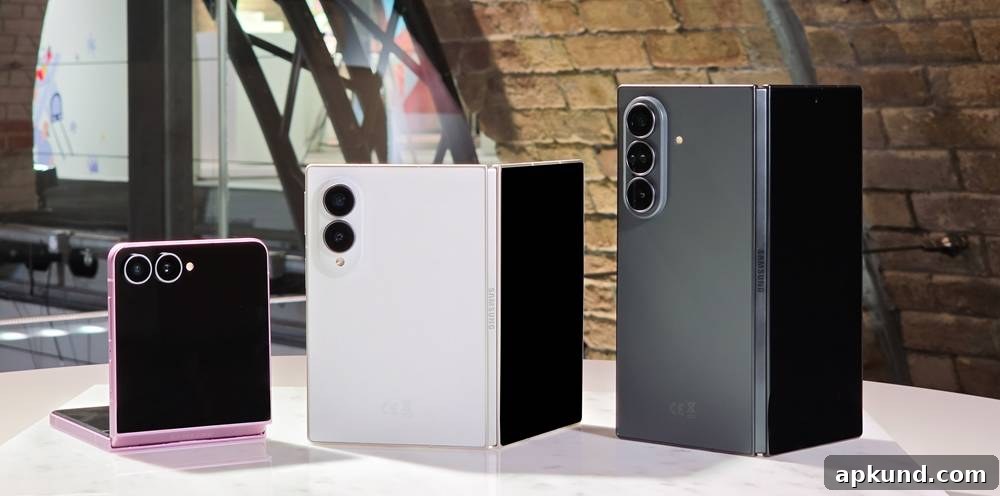
If you’re considering switching from an iPhone to one of Samsung’s latest foldable phones, there’s good news: Samsung has updated One UI 9 and improved its Smart Switch transfer process to make the transition smoother and faster for iOS users.
Getting a new phone should be exciting, but moving data from an existing device can sometimes feel like a hassle. Especially for users switching from iOS to Galaxy, being able to bring existing data and settings across easily is an important part of the experience.
Smart Switch is Samsung’s built-in data transfer tool designed to help users move personal content and settings from an old phone to a new Galaxy device during setup. Historically, moving from iOS to Android required installing the Smart Switch app on the iPhone and following a series of steps. The latest changes simplify that flow by cutting a few steps and offering a more streamlined, secure wireless transfer option.
Under the new setup flow in One UI 9, iPhone users no longer need to first download the Smart Switch app on iOS. Instead, the new Galaxy device can display a QR code during the initial setup. Scanning that QR code with the iPhone initiates a secure wireless transfer session that moves your chosen items directly to the Samsung phone. This method reduces friction for users who might be less familiar with side-loading or finding the right app in the App Store, and it shortens the overall setup time.
READ: Samsung’s Next Galaxy Ultra May Get Glass That Heals Itself
The updated Smart Switch transfer covers a wide range of data types. Beyond media files and contacts, the process can bring across messages, call history, and app data where supported. Samsung says system-level items like saved passwords and passkeys are included when possible, as well as accessibility settings you’ve customized on your old device. The transfer can also handle active eSIM configurations and other network-related settings in supported scenarios, allowing you to get connected more quickly after the move.
Another useful aspect of the enhanced setup is that Smart Switch can help you preserve or adapt your home screen and navigation preferences. For example, you can choose to replicate familiar navigation gestures or adjust home screen layouts so your new Galaxy feels more like your old phone. These personalization options reduce the time spent reconfiguring basic settings and improve the overall out-of-the-box experience.
Samsung has announced the new Smart Switch features will be available on the Galaxy Z Fold8 Ultra, Galaxy Z Fold8, and Galaxy Z Flip8. These updates are part of Samsung’s broader effort to lower barriers for users moving from other mobile platforms, particularly iOS, and to make the first-run experience as seamless as possible.
When preparing to transfer data from an iPhone, a few practical tips can help the process go smoothly:
- Ensure both devices are sufficiently charged or connected to power to avoid interruptions during transfer.
- Connect both phones to a stable Wi-Fi network if prompted, or follow on-screen instructions if the transfer uses a local direct connection via QR code.
- Back up your iPhone to iCloud beforehand if you want an extra copy of your data before initiating any transfers.
- Have your Apple ID credentials handy if the setup prompts you to verify accounts or export certain data types.
By reducing steps like requiring an app download on iOS and enabling QR-code-initiated transfers, Samsung aims to remove friction and make switching more approachable. Whether you’re coming from an iPhone or another Android device, the improved Smart Switch experience in One UI 9 focuses on secure, comprehensive transfers and preserving personal settings so your new Galaxy feels ready to use from the first power-on.