
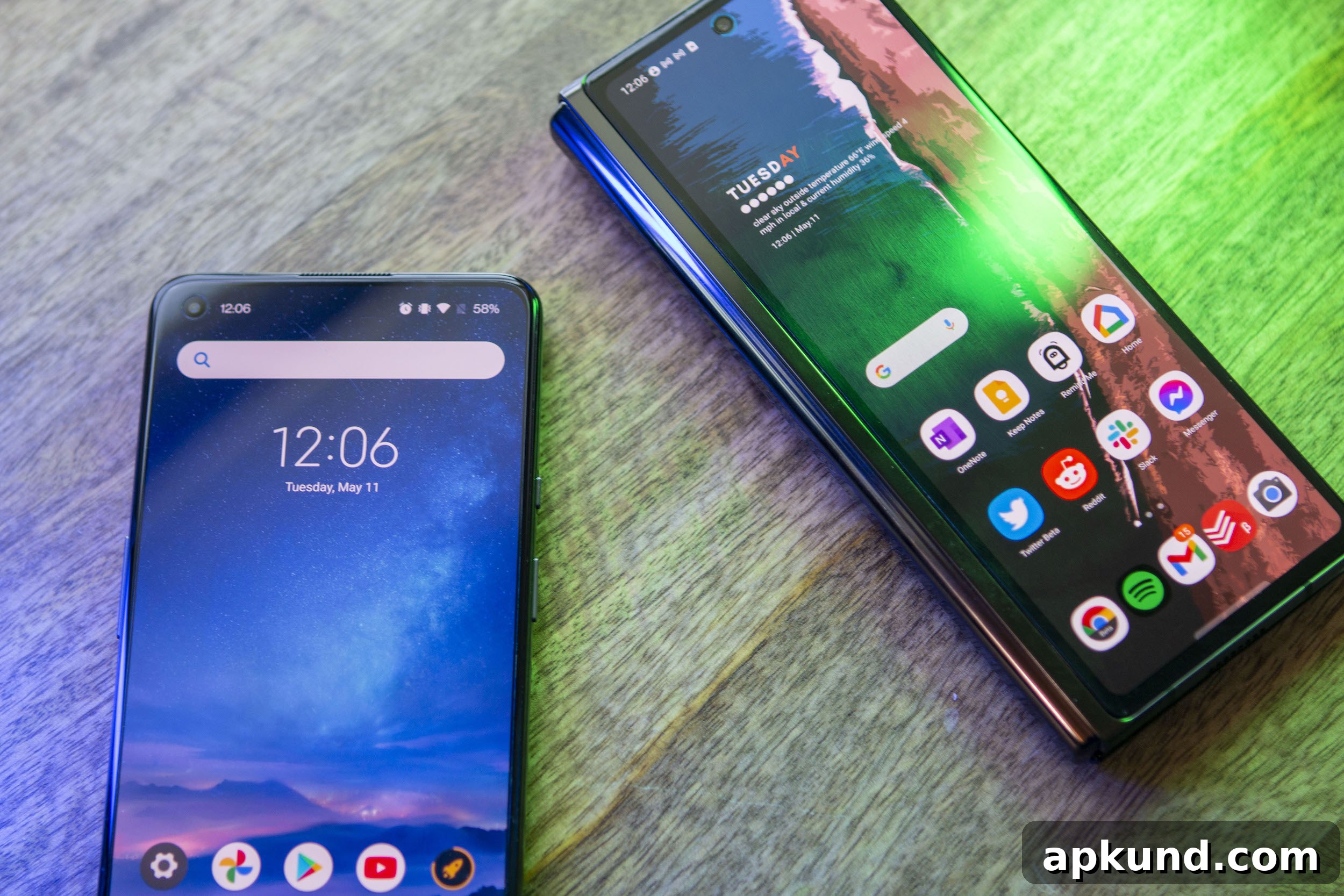
Arguably the best part about Android is the freedom to replace many of Google’s built-in apps with alternatives that better suit your needs. You can pick a different browser, a different messaging app, or switch to a custom Home Screen launcher. Changing your launcher unlocks extensive customization options and lets you tailor how you interact with your device, from app icons and gestures to widget placement and animation behavior.
Step 1: Find a new launcher
To use a different launcher, download one from the Google Play Store. There are dozens of launchers available, each offering different features, design philosophies, and levels of customization. Open the Play Store, search for “launcher,” and browse the results. Read recent reviews, check screenshots, and pay attention to how actively the app is maintained. A well-supported launcher will receive updates that keep it compatible with the latest Android versions and new device features.
Some recommendations
Over the years many launchers have come and gone, but several have consistently offered strong performance and flexible customization. Below are a few popular choices that cater to different priorities—power users, clean design, or integration with other services. Try a couple to see which workflow and look you prefer.
- Nova Launcher – A long-standing favorite for its combination of deep customization and reliability. Nova lets you tweak home screens, app drawers, gestures, icon sizes, and animations while remaining fast and stable. It’s a good option whether you want subtle changes or a complete overhaul of your interface.
- Hyperion Launcher – Hyperion focuses on a clean, modern user experience with meaningful customization without unnecessary bloat. It keeps up with Android UX trends and offers options for theming and fine-grained appearance control.
- Microsoft Launcher – If productivity and integration with Microsoft services matter to you, Microsoft Launcher brings features like a personalized feed with calendar and to-do lists alongside solid customization options for layout and appearance.
- CPL (Customized Pixel Launcher) – CPL builds on the Pixel-style launcher and expands it with extra options for users who prefer the Pixel look but want more control over widgets, the app drawer, and other interface elements.
When selecting a launcher, consider how it handles updates, battery usage, and privacy. Some launchers offer premium features behind a paywall; weigh those costs against the specific enhancements you want, such as advanced gesture controls, icon pack support, or cloud backup of your launcher settings.
Step 2: Apply the new launcher
Once you’ve chosen and installed a launcher, you need to set it as your default Home app so Android will use it whenever you return to the home screen. Simply opening a launcher app won’t make it the default; you must change the default app setting in your phone’s system settings. The exact labels and menu structure can vary slightly between Android versions and manufacturers, but the general steps are the same.
- Open the Settings app on your phone.
- Select Apps from the list.
- On some devices you can search within Settings for “Default apps” or “Home app” to jump directly to the correct screen.
- Tap Default Apps.
- Choose Home App (or a similarly named option).
- Select the launcher you installed to set it as the default Home app.
After selecting the new Home app, your device will return to the home screen and display the new launcher interface. The first time you switch, you may notice layout differences, a fresh app drawer, or new gesture behaviors. Spend some time exploring the launcher’s settings to customize homescreen grid size, icon appearance, gestures, folder behavior, and app drawer options. Many launchers let you apply icon packs, add and resize widgets, and configure shortcuts.
Tips for getting set up:
- Backup your launcher settings if the app supports it so you can restore your layout if you switch devices or reset the phone.
- Try a few different icon packs or wallpaper combinations to find a cohesive visual style.
- Adjust grid and icon sizes for readability and efficient use of space—what looks good on a large display might feel cramped on a compact phone.
- Explore gesture controls for quick access to search, notifications, or frequently used apps.
Changing your launcher is a low-risk way to refresh how your Android phone looks and behaves. If you don’t like the new launcher, you can always return to your previous Home app through the same Default Apps setting. With a wide range of launchers available, you can fine-tune your device to match your priorities—whether that’s speed, minimalism, customization, or productivity.