
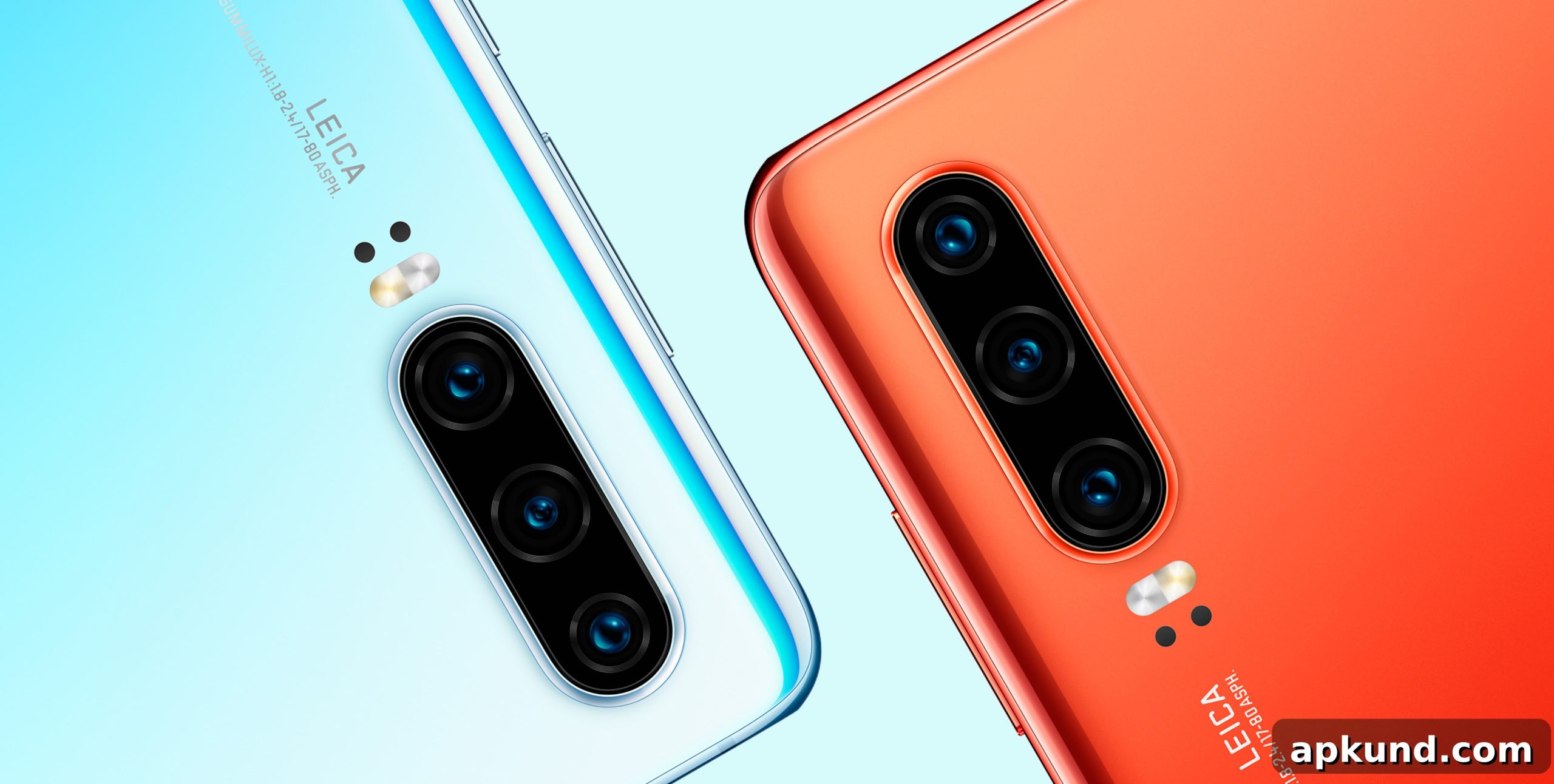
There is no denying that over the past few years Huawei has transformed its image from a maker of affordable, budget Android phones into a manufacturer of powerful flagship devices that compete directly with Apple and Samsung. The company’s engineering, camera innovations, and premium designs even helped it briefly claim the top spot as the world’s largest handset vendor, challenging long-established rivals.
That progress was interrupted, however, by geopolitical tensions. Following a trade dispute between the United States and China, the U.S. government placed Huawei on the Entity List. That designation restricts U.S. companies from doing business with Huawei and has significant consequences for smartphone users: Google is unable to license its Play Services and other apps to affected Huawei devices. As a result, recent Huawei phones — beginning with models launched after the Mate 30 series — have shipped without Google Play Services or the Google Play Store installed.
For many users, the lack of Google services is a major drawback. Fortunately, there are methods developed by the community that can restore Google apps and services to certain Huawei devices. One of the more user-friendly options is an app called Googlefier, which automates much of the process and reduces the technical complexity involved. The tool was created and refined by members of the mobile development community to help owners of compatible Huawei and Honor phones regain access to core Google services.
Install Google Play Services on your Huawei phone using Googlefier
Previously, adding Google apps to affected Huawei phones required a laborious sequence of steps that could be intimidating for the average user. Googlefier simplifies that workflow by guiding you through the required actions and automating several steps. Before attempting this process, take a few precautions to maximize the chances of success and protect your data.
First, consider starting from a clean system state. A factory reset can remove apps or custom settings that might interfere with the installation process and increase the likelihood that Googlefier will complete successfully. If you choose to reset your device, be sure to back up all important data — photos, contacts, messages, and documents — to an external location or cloud backup that you control. If you prefer not to reset immediately, you can try the method on your current setup, but keep in mind that a reset may be recommended if you run into problems.
With backups secured and the phone prepared, follow these general steps to use Googlefier. Note that specific prompts and minor details may differ depending on your device model and EMUI version, so follow the app’s on-screen directions carefully.
- Download and install the Googlefier application package onto your Huawei or Honor phone. If you obtain the app from community forums or repositories, ensure the file comes from a reputable source and matches expected checksums when available.
- Open Googlefier and allow the app to request the permissions it needs to modify system settings and install packages. Grant these permissions when prompted so the app can proceed.
- Follow the step-by-step instructions presented by Googlefier. The app will guide you through tasks such as installing required APKs, adjusting settings, and performing any temporary replacements needed for the process.
- As part of the workflow, Googlefier may replace or restore certain system components used by third-party installers. Allow the app to perform these operations and confirm prompts as they appear.
- When prompted, sign in with your Google account. After successful installation, you should be able to access the Google Play Store and other essential Google services on your device.
- Once the installation completes, verify that Google Play Services, the Play Store, and other Google apps are working correctly. Reboot the device if the app recommends doing so.
It is important to note compatibility limitations. Googlefier is effective on many older EMUI releases, but it does not work on some newer versions. For instance, devices running EMUI 11 or later are commonly incompatible with this method. If your device uses a newer EMUI build, you may need to consider downgrading to an older, supported version — a procedure that carries its own risks and complexities — or explore alternative solutions recommended by experienced developers.
In summary, community tools like Googlefier offer a practical path for users who want to restore Google Play Services to supported Huawei and Honor phones. Proceed carefully: back up your data, follow instructions closely, and verify compatibility for your specific model and EMUI version. With the right preparation, many users have successfully regained full Google app functionality on their devices using this streamlined approach.